

Formatting and the / menu
Headings, lists, toggles, columns, calendars, emoji, videos, files, page icons and covers.
Select text to see the formatting toolbar: bold, italic, underline, strikethrough, code, links and comments.
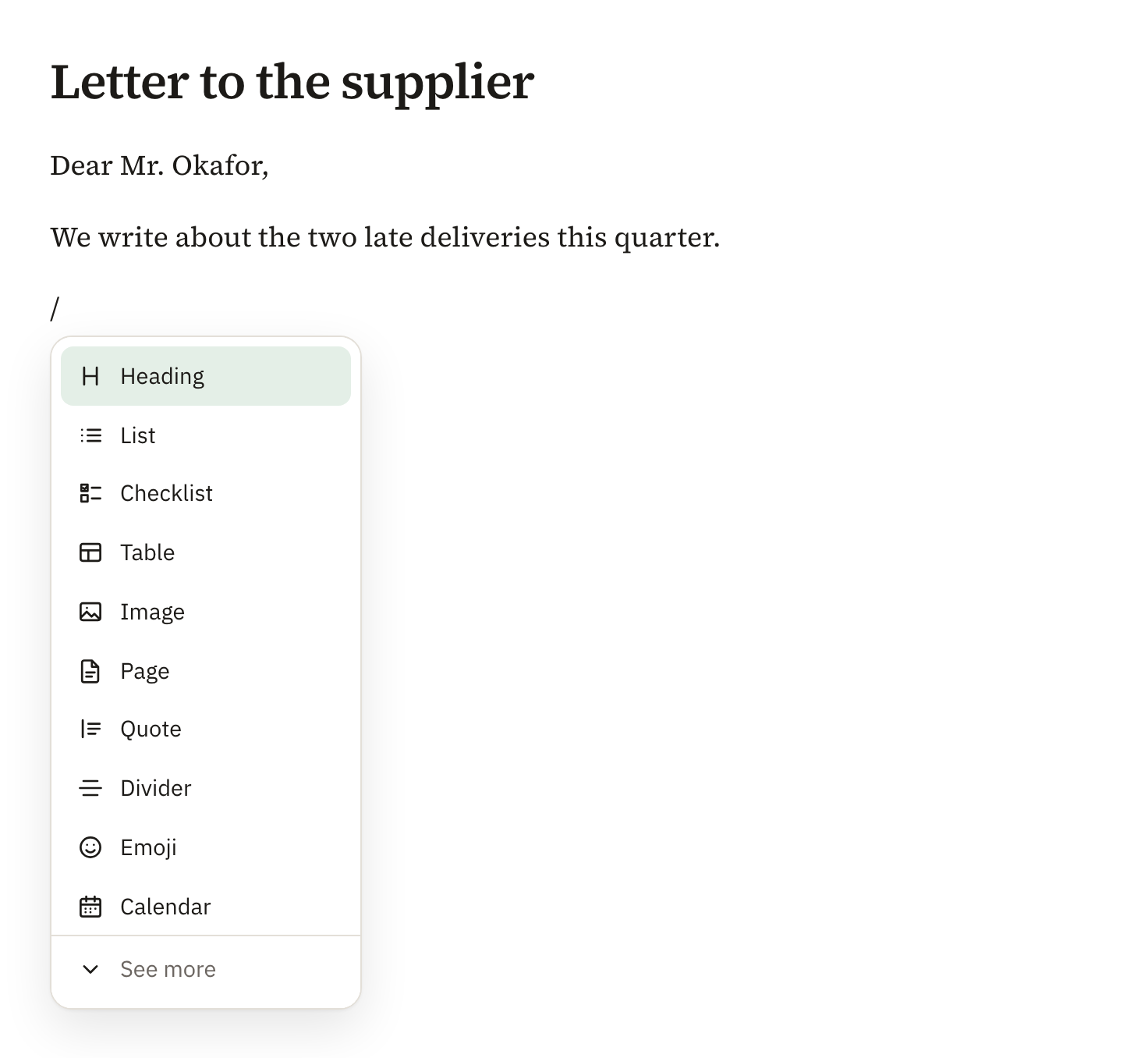
On an empty line, type / to open the insert menu. It opens on the everyday blocks; choose See more for the rest. Keep typing to search everything, use the arrow keys to choose, and press Enter.
- Heading: a section heading. The document’s name is its title, above everything else.
- List and Checklist: bulleted items, or items you tick off.
- Table: a grid you can add rows and columns to.
- Code, Quote and Divider.
- Toggle: a line that opens to show what is folded under it.
- 2 columns and 3 columns: blocks side by side. Drag the line between them to change their widths. On a phone they stack.
- Board: cards you drag between lanes. Gallery: pages shown as cards, each with its first picture on top. Boards and galleries each have their own allowance: one of each on Free, three of each on Basic, as many as you like on Pro. Ones you already have keep working.
- Calendar: a month with events on its days. An event can run over several days, and the page’s tasks with a due date show on their day.
- Emoji: search for one, or type a colon and its name, such as :thumbs.
- Image: a picture from your computer.
- Video, Audio and File: upload one, up to 100 MB each, on Basic, Pro and Enterprise. It plays or downloads from the page, on share links too.
- YouTube video: paste the video’s link. Pasting a YouTube link on an empty line does the same. It plays through YouTube’s privacy-enhanced player, on share links too, and downloads link to it.
Markdown shortcuts work too: # for a heading, - for a list, [ ] for a checklist and > for a quote.
To give a document its own icon, choose Add icon above its title and pick an emoji. The icon shows beside the document’s name on Home, in search, in the document panel, on links to it and on shared pages.
To give a page a cover photo, point at the page and choose Add cover, beside Add icon, then pick one of the ready-made covers, upload a picture or paste a link to one. On the cover, Reposition lets you drag it to show the part you want, and you can also change or remove it. Covers show on shared pages, on the title slide when you present, and on the page’s card in a gallery. Copies keep the cover, templates bring theirs, and Notion pages bring theirs in.
Didn’t answer your question? Email support@pagyra.com.